
Shopify image alt text: why it matters, how to automate it
Shopify image alt text is the most ignored field in the product editor, and it’s the only one doing two jobs at once. Alt text is the sentence a screen reader speaks and a search engine reads when it can’t see your image. Leave it blank and a shopper using a screen reader hears nothing useful about your product photo, and Google gets no help understanding what the picture shows.
Most stores leave it blank, or worse: the upload filename lands there and stays. This guide covers what alt text actually does (with what Google itself says, not what SEO tools claim), where the field hides in Shopify, writing rules that fit in 125 characters, and how to fill 3,000 of them without typing 3,000 sentences.
What alt text actually does, and what it doesn’t
Alt text does two things: it makes product images accessible to people using screen readers, and it tells search engines what an image shows. Google’s image documentation is plain about the mechanics: alt text helps them understand the subject matter of an image, alongside computer vision and the surrounding page content, and it serves as anchor text when the image is a link. Their model example of good alt text is “Dalmatian puppy playing fetch”: short, specific, describing the actual picture.
What it doesn’t do is rank your store by itself. Google doesn’t present alt text as a ranking lever, and it explicitly warns that stuffing keywords into alt attributes creates a bad experience and can get a site treated as spam. So here’s my position, which is the reverse of most SEO guides: fill alt text for the humans first, and treat the search visibility as interest, not principal. The shoppers using screen readers would like to know what the candle looks like too.
Filenames get a supporting role. Google reads them as a light signal, and their own example says it all: my-new-black-kitten.jpg beats IMG00023.JPG. You can’t rename images already uploaded to Shopify without re-uploading, so treat that as a rule for new products, not a retrofit project.
How to add image alt text in Shopify
Every product image in Shopify has its own alt text field: open the product, click the image in the Media section, and edit the alt text there. Collections and blog post images have the same field in their editors. It’s a per-image, per-click workflow, which is exactly why it never gets done at catalog scale.
The bulk route without an app is the product CSV, which carries an Image alt text column alongside the description and SEO fields. Export, fill the column in a spreadsheet, re-import. It works, with the usual CSV discipline: touch only the columns you mean to change, and test on five products before the catalog. I walk through that discipline in the safe bulk editing guide.
Writing rules that fit in 125 characters
Good alt text is a specific sentence about the picture, kept under about 125 characters, the old screen reader convention that’s still a sensible ceiling. The rules:
- Describe what’s in the frame: material, color, setting, state. “Hand-poured soy candle in amber glass jar, lit on a wooden table” tells a listener and a crawler the same true thing.
- Skip “image of” and “photo of”. Screen readers announce it’s an image before reading your text.
- No keyword lists. One natural mention of what the product is beats five variations of it, and stuffing risks the spam treatment Google warns about.
- Every image gets its own. The second and third photos show different things (the lid off, the size against a hand), so their alt text should too.
- Don’t repeat the product title. The title is already on the page; the alt text’s job is the picture.
- Decorative images can stay empty on purpose. A divider or background texture that tells a shopper nothing can keep an intentionally empty alt, and screen readers will skip it instead of reading noise. Empty by decision is fine; empty by neglect is the problem this article is about.
Before and after, from the example I keep reusing:
Before: IMG_4032-final-2.jpg
After: Hand-poured soy candle in amber glass jar, lit on a wooden table
One is a filename that tells everyone nothing. The other is 64 characters of actual information.
Automating Shopify image alt text across the catalog
The arithmetic is why automation wins here: a 1,000-product store with three images per product has 3,000 alt text fields, and at a realistic 30 seconds each that’s 25 hours of typing into tiny boxes. (Alt text field number 3,000 is where good intentions go to die.) Nobody does 25 hours of that, which is why the fields stay blank for years.
This field is part of why I built InkForge, an AI product description app for Shopify with preview and rollback: one credit covers one complete product, and the image alt text is generated in the same pass as the description, meta title, and meta description, following the rules above. Everything shows in a preview next to what’s currently on the product, you approve or edit per product, and version history keeps the old values one click from restored. The free plan covers 50 products a month; the $15 plan covers 500.
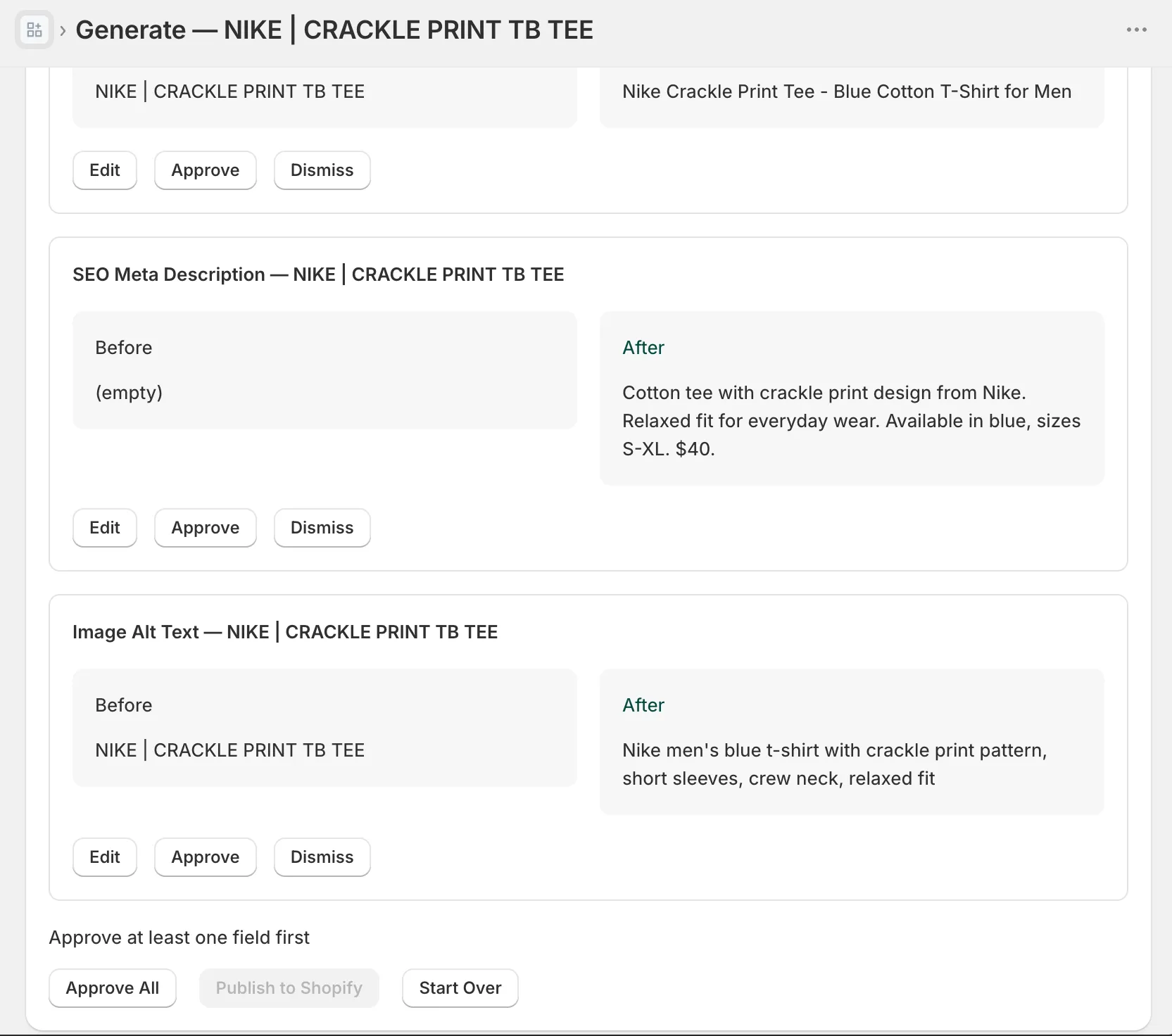
Whatever tool you use, keep the review pass, because alt text errors are the embarrassing kind: a wrong color or a misread label sits in front of the exact shopper who depends on it being right. Alt text is short; skimming 500 of them is an evening, not a week.
The catalog cleanup, in order
- Export your products to CSV and sort by the Image alt text column. The blank count is your backlog, and seeing the number is usually motivating enough.
- Bestsellers first. The products already getting traffic and image impressions gain the most.
- Generate alt text in the same pass as your meta fields. They’re siblings; the meta title and description workflow covers that half.
- Review per product, then publish. Check the color, the material, the setting. Machines misread labels; that’s what the preview is for.
- Check Search Console a few weeks later. Performance report, search type set to Image, filtered to your fixed pages. Impressions moving is the signal.
If you’d rather steps 3 and 4 came as one workflow, the free plan covers your first 50 products, bestsellers included, and you’ll know within an evening whether the output survives your review.
FAQ: Shopify image alt text
Does alt text help Shopify SEO? It helps Google understand what your images show, which is how product photos surface in Google Images, and it’s used as anchor text when an image is a link. Google doesn’t present it as a direct ranking lever, so treat it as context you’re currently leaving blank, not a growth hack.
How long should Shopify image alt text be? Keep it under about 125 characters, the old screen reader convention. Describe what’s actually in the picture: material, color, setting. Skip the words “image of” (screen readers announce that already), and give every image its own alt text, not just the first one.
Can I bulk edit image alt text in Shopify? Yes, two ways. The product CSV has an Image alt text column you can fill in a spreadsheet and re-import. Or an app can generate alt text for every product image in the same pass as the description and meta fields, with a review step before anything publishes.