
How to find Shopify products without descriptions
You can’t fix content debt you haven’t measured, and Shopify makes the measuring strangely hard: there is no built-in way to filter Shopify products without descriptions. The product list filters don’t read the description field at all. So the census happens elsewhere, and this guide covers the three routes that actually work: a CSV export you sort in a spreadsheet, the admin search box for finding copied text, and apps that do the counting for you.
A definition before the methods, because it’s the number this article exists to produce: content debt is the list of products a shopper can reach but your copy never did. Missing descriptions are the visible half; thin and copy-pasted ones are the half that hides from every filter.
Can you filter Shopify products by empty description?
No. As of October 2026, Shopify’s product filters cover vendor, tag, status, category, sales channel, collection, publishing error, gift cards, combined listings, and metafields, and none of them looks at the description field. You can save any filtered view for reuse, but there’s nothing description-shaped to save. The admin search box does index description text, which helps later in this guide, but a search can’t test for emptiness.
(I spent a full afternoon looking for that filter before accepting it doesn’t exist. You’re welcome.)
Worth admitting in public: an earlier guide of mine told readers to filter by “Description is empty”, because I’d assumed a field that important would be filterable. I checked, it isn’t, and I’ve corrected the guide. The lesson generalizes: in Shopify, the description is content you can edit anywhere but measure almost nowhere, which is exactly why the next section exists.
The CSV census: the reliable way to find Shopify products without descriptions
The product CSV is the one place every description sits in a countable column, so the census takes ten minutes: export, open, sort. Step by step:
- Export. Products, Export, then “All products” as a plain CSV.
- Keep one row per product. The file adds extra rows for variants and images that leave most fields blank, so filter to rows where the Title column has a value; those are your actual products.
- Sort or filter the Description column. The rows with an empty Description cell are the missing list. Count them; that number is the debt.
- Add a word-count column for the thin ones. In Google Sheets:
=IF(C2="",0,COUNTA(SPLIT(C2," "))), where column C is Description in Shopify’s current export. Sort ascending. The count runs slightly high on descriptions with HTML in them, which is fine; you’re triaging, not grading.
Where to draw the thin line is judgment, and here’s mine: under about 40 words is thin for anything over $20, because 40 words can’t cover who it’s for, what it’s made of, and what happens if it doesn’t fit. Your threshold can differ; having one at all is the win.
One habit turns the census into a system: date the export and keep it. Next quarter’s file against this quarter’s shows whether the debt is shrinking, and the export doubles as your backup before any cleanup, which is rule one of safe bulk editing.
Admin search: the copied-description detector
The admin search box covers product titles, descriptions, and tags, which makes it the tool for the debt the CSV can’t see: descriptions that exist but were never yours. Search the phrases supplier text always carries, “multifunction”, “premium quality”, “best gift”, and the results are your imported-copy list, sortable and saveable as a view. Repeat with your own niche’s clichés; every vertical has three.
For the cross-store version of the same check, pick one distinctive sentence from a bestseller’s description and search the web for it in quotation marks; the result count is roughly how many stores share your copy. Both checks, and the cleanup that follows them, are the subject of the dropshipping catalog guide.
Work the list where the money is
A content-debt list is only useful sorted by revenue, so run it in this order: bestsellers with thin copy first, because those pages already have traffic paying the price of bad text. High-traffic pages that don’t convert second; the copy is the likely leak. New arrivals third, before they index badly and settle there. The long tail last, in batches, on the months you have spare credits or spare evenings.
The wrong order is the tempting one: alphabetical, or worst-first. A blank description on a product nobody visits costs you nothing this month; a 20-word description on your bestseller costs you every day.
And keep the census current, because content debt regrows at exactly the speed you add products: every import and every rushed launch defaults to an empty or supplier-written description. The maintenance version of this whole article is one calendar entry: re-export on the first of the month, run the same sort, and compare the count to last month’s file. A number that trends down means the system works; a number that trends up means new products are skipping the copy step, and that’s a process fix, not a writing sprint.
Turning the list into filled pages
Counting the debt is the audit; paying it down is a generation-and-review job, and that half is why I built InkForge, an AI product description app for Shopify with preview and rollback. Select the products from your census, and each one comes back with a description, meta title, meta description, and image alt text, one credit per product, generated in your brand voice. Every row previews next to what’s currently live (usually nothing, which is the point), you approve or edit per product, and version history keeps anything you replace one click from restored.
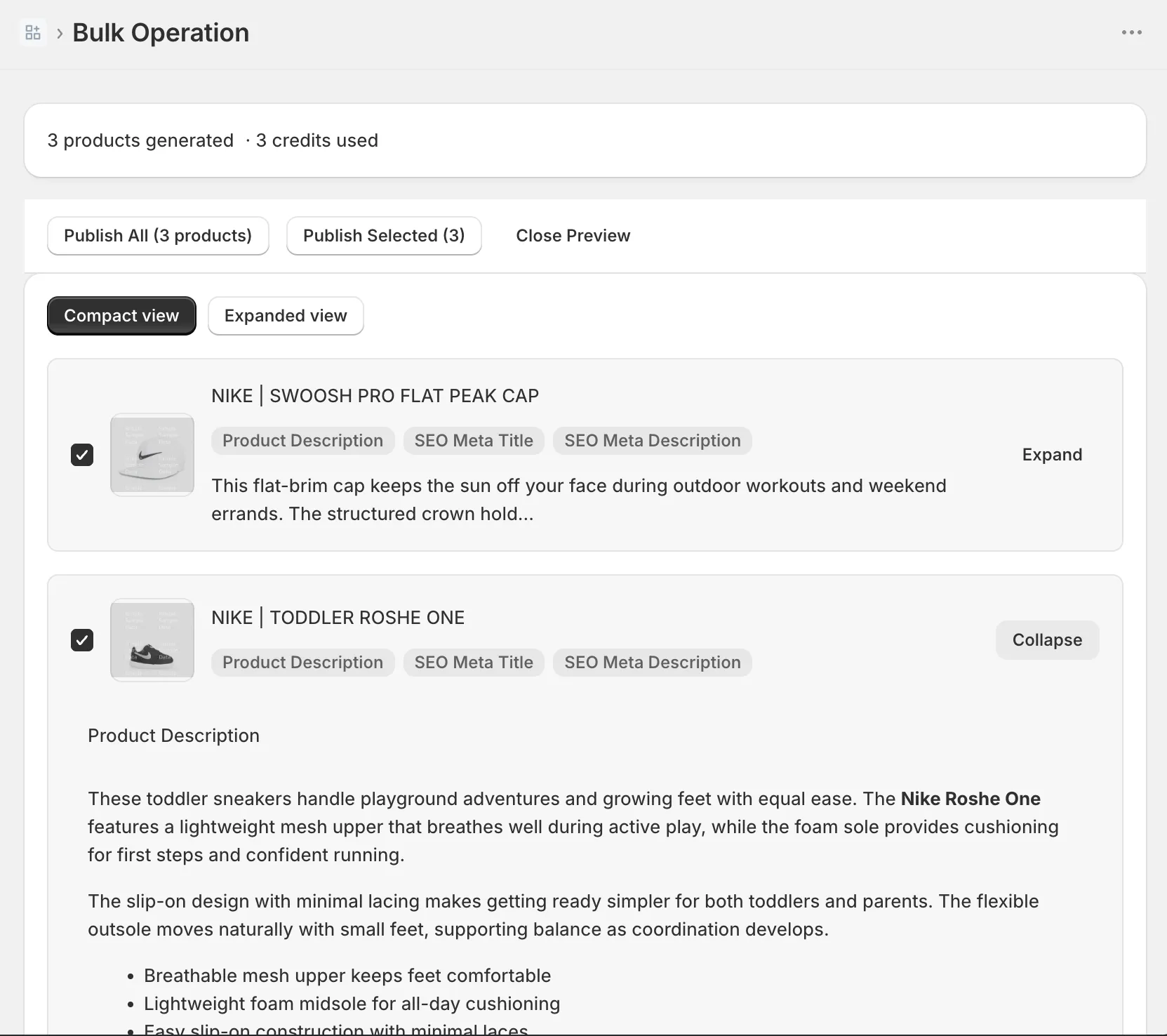
The free plan’s 50 credits a month cover the top of your priority list, bestsellers and thin pages first; the $15 Starter plan’s 500 credits cover a long tail. A store with 60 gaps clears them in two free months, which is a fine outcome for me too; the paid plan is for catalogs where the census came back in the hundreds.
Run the export today, even if the cleanup waits: the count takes ten minutes, and every content decision after it gets easier when the debt has a number.
FAQ: finding products without descriptions
Can you filter Shopify products by empty description? No. As of October 2026, the product list filters cover vendor, tag, status, category, collection, sales channel, and metafields, and none of them reads the description field. The reliable census is a CSV export: sort the Description column and the blank rows are your list.
How do I find thin product descriptions, not just missing ones?
Add a word-count column to your product CSV in a spreadsheet: in Google Sheets, =IF(C2="",0,COUNTA(SPLIT(C2," "))) counts the words in each description (column C is Description in Shopify’s current export). Sort ascending and set your own threshold; I treat anything under about 40 words as thin for products over $20.
What counts as a thin product description? A description that leaves a buyer’s basic questions unanswered: no sizing or dimensions, no material, no shipping expectation, just a sentence restating the title. Word count is the fast proxy, but the real test is whether the page answers what a first-time visitor would ask before buying.